 Facilitator Tools
Integrating slides
| TL;DR Click Import Slides in the Designer and drop in a PDF or PowerPoint (.pptx) file (up to 100 MB). Each slide becomes a “Slide (single image)” item you can interleave with your activities. |
|---|
In the Session Designer (or the Session Builder view), click 📄 Import Slides.
Drag a file onto the drop zone, or click to browse.
Choose a PDF or PowerPoint (.pptx) file up to 100 MB.
The slides are added as “Slide (single image)” items in your session, which you can reorder among your activities.
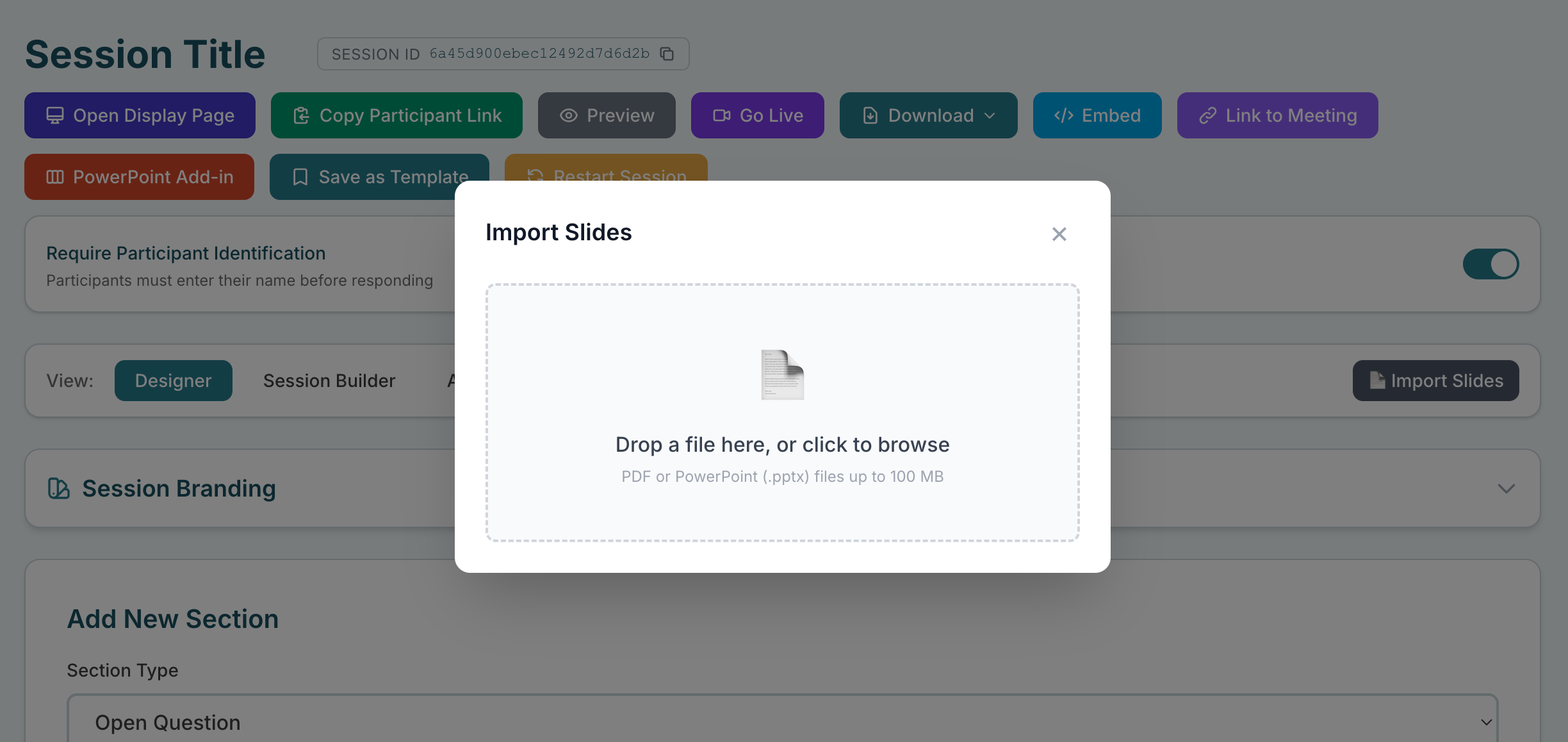
Import Slides dialog showing the drop zone and accepted formats
This turns a normal slide deck into part of the running order, so you can show a slide, then run a poll, then show the next slide — all from the one display page. To reorder slides and activities, see “Changing the order”. To present from PowerPoint itself instead of importing, see “PowerPoint integration”.
Keynote files are not imported directly — export them to PDF or PowerPoint first (see “Keynote integration”).
A note on fonts (PowerPoint imports). Slides are converted to images on our servers, which carry the standard Office fonts (Arial, Calibri, Cambria, Times New Roman) plus a growing set of popular free fonts. Decks using other downloaded or brand fonts may render with a substitute, which can shift or overflow text — especially in text boxes that rely on PowerPoint’s shrink-text-on-overflow autofit. Three reliable fixes: export the deck to PDF and import that instead (PDFs embed their fonts, so they render exactly); switch the affected text box to a standard font; or leave a little more room in the box than the text needs. Re-import the deck after any change — rendering happens at import time. Use a free font we’re missing? Contact support and we can often add it.
| Ask the assistant • How do I add my slides to a session? • What file types can I import? • How big a file can I upload? • Can I mix slides and activities? |
|---|