 Facilitator Tools
Session status and archiving
On the Dashboard each session has a status you can switch between Draft, Live and Archived. Set a finished session to Archived to keep it without it appearing as active. (Audit-log retention for archived activity is 90 days on Team and unlimited on Enterprise.)
Each session card on the Dashboard also gives you day-to-day housekeeping controls:
Duplicate — copies the session's agenda (all activities and slides, but none of the responses) into a new draft session, so you can reuse a session you have already run or keep a master copy untouched.
Delete — open the status dropdown on the card and choose Delete Session. A confirmation dialog warns you first: deleting is permanent and removes the session's activities and responses.
Archived accordion — archived sessions move out of the main list into an “Archived Sessions” accordion at the bottom of the Dashboard, where you can reopen or re-activate them at any time.
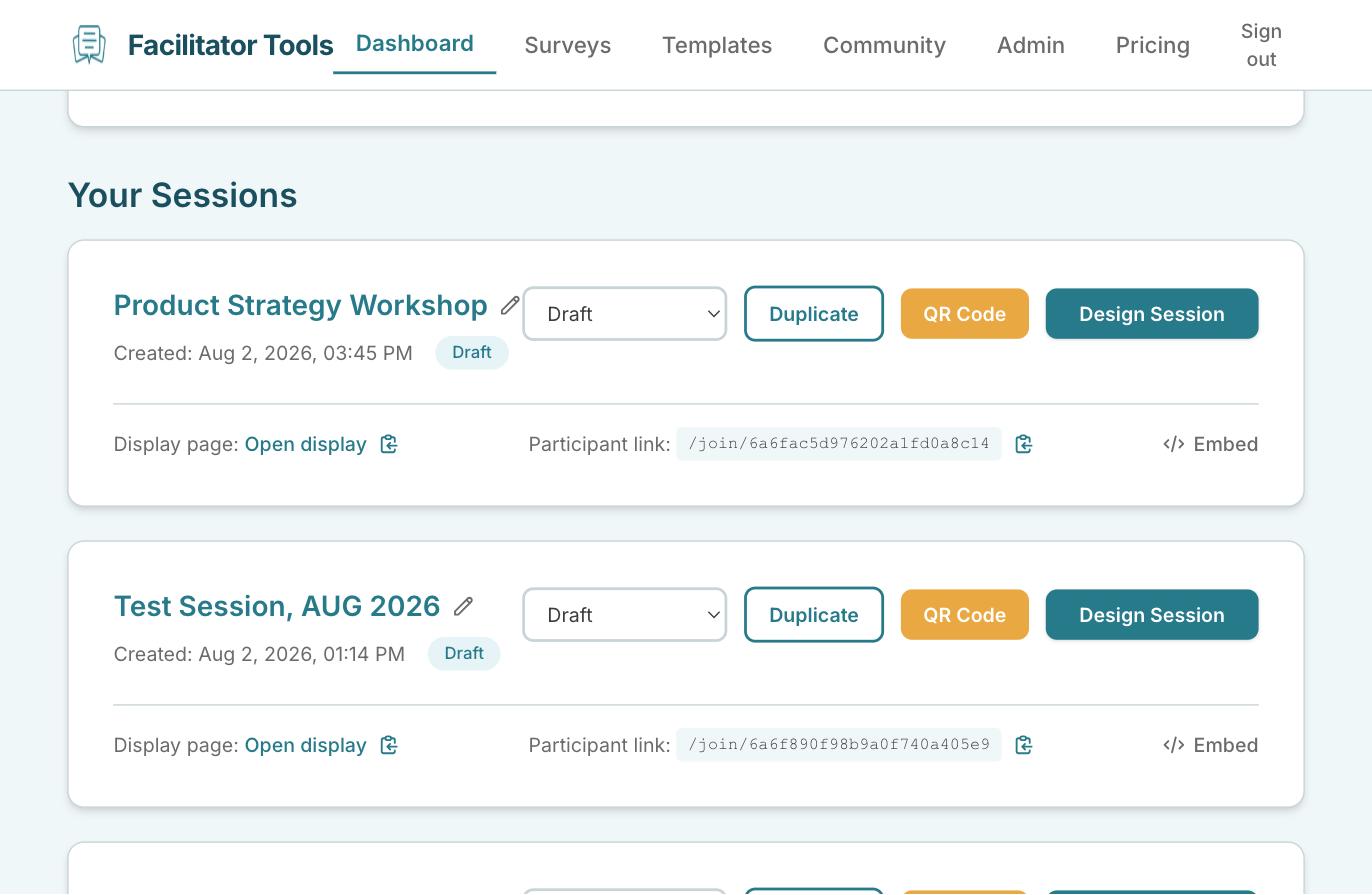
A session card on the Dashboard: status dropdown, Duplicate, QR Code and Design Session
| Ask the assistant • How do I preview my session before going live? • How do I make my session live? • How do I switch between activities during a session? • How do I duplicate a session? • How do I archive a finished session? • How do I delete a session permanently? • What do Draft, Live and Archived mean? |
|---|