 Facilitator Tools
Inviting users
| TL;DR Admins invite team members in Admin → Users: enter their email, choose a role (Facilitator or Admin) and click Invite. Manage or remove members from the same table. Multi-seat plans are Team+. |
|---|
For Team accounts, you have the ability to invite people to join. Inviting colleagues to your organization is done from the Admin area and requires admin rights.** [Team+]**
In the top navigation, click Admin, then Users (Admin → Users).
In the “Invite User” box, enter the person’s email address.
Choose their Role: Facilitator (build and run sessions) or Admin (also manage users and settings).
Click Invite. They appear in the user table with a status until they accept.
Individuals you invite will receive an email to complete their account registration.
If the person invited to join your team already has an account (free or paid) their existing account will be canceled and transferred to the team account.
The user table lists each member’s name, email, role, status and last login. If you are the team admin, you can change a member’s role or use remove to revoke access.
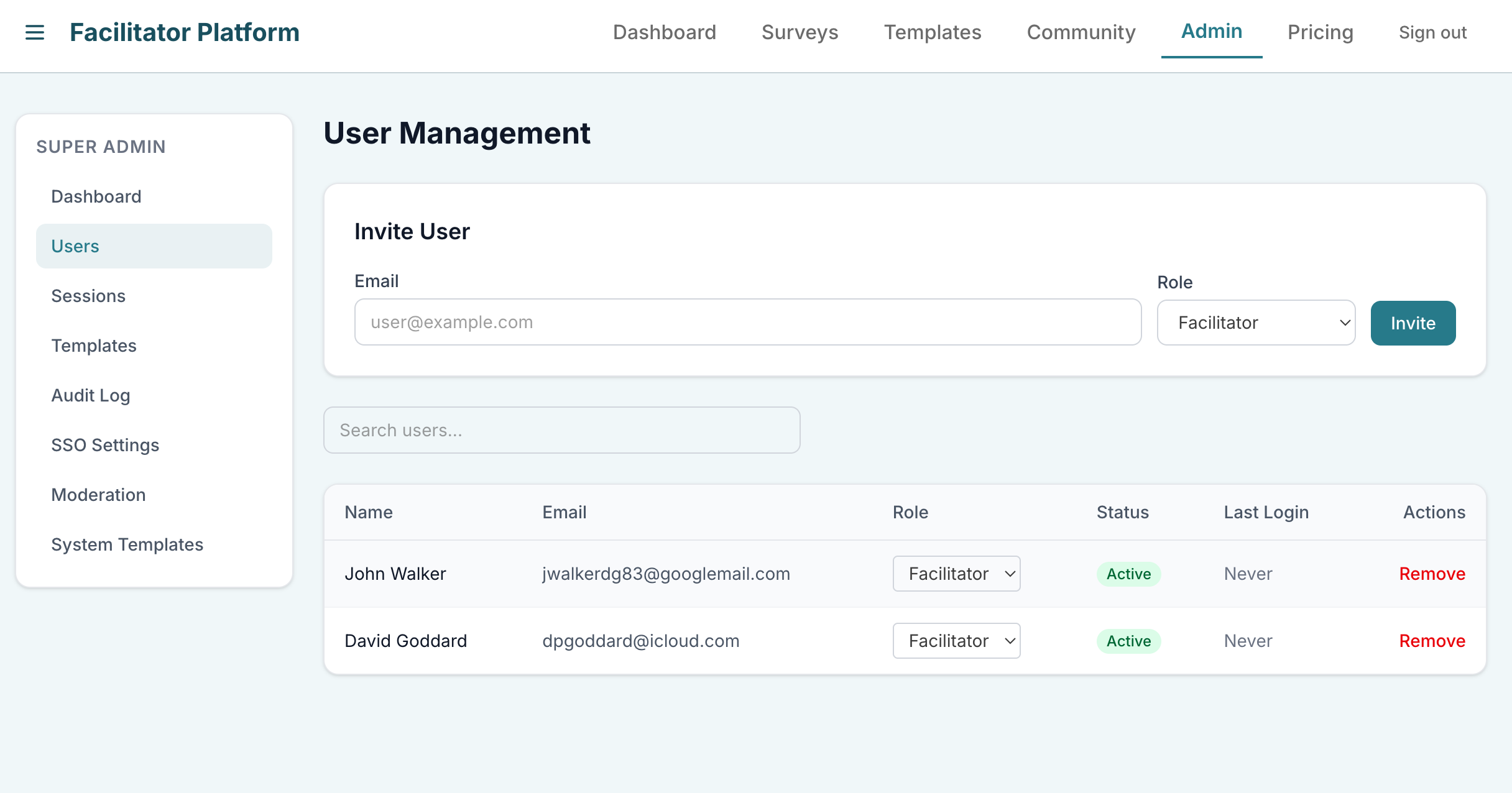
Admin → Users page with the Invite User box and the user table
Note: inviting team members (seats) is different from inviting participants to a session. To bring participants into a live session you share a link or QR code — see Sharing a session. Single sign-on (SSO) and automated provisioning (SCIM) are Enterprise features.
| Ask the assistant • How do I invite a colleague? • What is the difference between a Facilitator and an Admin? • How do I remove someone from my organization? • How is inviting users different from inviting participants? |
|---|